ChatGPT link to PDF, the whole conversation
Turn a ChatGPT link into a PDF or Word file in one paste. Drop in a chatgpt.com/share link, TODOC loads every prompt and answer into an editor, and you download a clean document with tables, code blocks and equations intact.
Loading a link is free · One free export without signing in · 2 free exports every day once you sign in
Share link converter
Convert a ChatGPT link to PDF, Word or Excel
Paste a public ChatGPT share link (chatgpt.com/share/… or chat.openai.com/share/…) and click Load conversation. The ChatGPT share link converter fetches the public page, puts the full chat into the editor below — your prompts as quotes, the answers with their original formatting — and you click Export to PDF, Word or Excel. Nothing to install: this ChatGPT link to PDF tool runs in the browser. The sample shows what a loaded share link looks like: a prompt, a table, an equation and a checklist.
How it works
How to convert a ChatGPT share link to PDF
- 01
Copy the share link
In ChatGPT, open the chat, click Share at the top right and choose Copy link. If someone sent you a link, just copy it from the email or message — you do not need their account.
- 02
Paste and load
Paste the link into the box above and click Load conversation. The whole chat appears in the editor within a few seconds, with each prompt shown as a quote above its answer.
- 03
Export the file
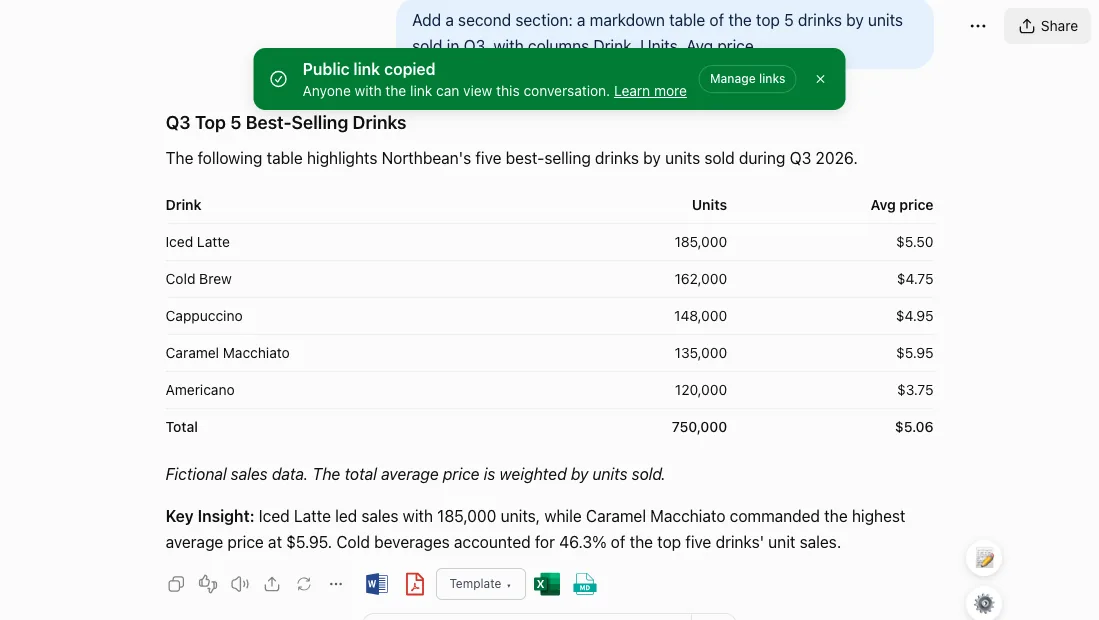
Delete the turns you do not need, fix a heading or add a note, then export. You get a PDF for sharing, a Word document for editing, or an Excel workbook with one sheet per table.
What stays intact
Why a ChatGPT share link to PDF beats printing the page
The full chat, not one answer
A ChatGPT link holds a whole thread. The converter keeps every visible prompt and answer in order, so a ChatGPT link to PDF export reads like the original exchange. Hidden system messages and reasoning summaries are left out.
Tables as real tables
Markdown tables in the answers become proper tables in the PDF and native tables in Word. Export to Excel and each table lands on its own worksheet, ready to sort and sum.
Math and code kept
LaTeX formulas are rendered in the PDF and become editable Word equations, not images. Code blocks keep their language, indentation and monospace font instead of wrapping into one long line.
Edit before you export
The chat loads into an editor, not straight into a file. Remove small talk, rename the title or add your own notes first, so the document you send is the one you actually want people to read.
When people use it
When to convert a ChatGPT link to PDF or Word
Someone sent you a share link
A colleague, teacher or client shares a chat with you. You cannot open it in your own ChatGPT history, but you can paste the share link here and save it as a PDF for your records — no access to their account needed.
Keep a copy before the link disappears
Share links stop working when the owner deletes the chat or turns sharing off. Converting the ChatGPT link to PDF today gives you a file that stays readable even if the page is gone next month.
A ChatGPT link to Word for reports
When the chat is raw material for a report, export it as .docx instead. Headings become Word heading styles and equations stay editable, so you can rework the text in Word or Google Docs.
Hand in or attach the chat
Some courses and teams ask you to submit the AI conversation behind your work. A share link can change or vanish; a PDF made with the ChatGPT share link converter is a fixed file you can upload or attach.
Comparison
Share link converter vs. printing or copy-paste
| What you need | TODOC | Print page or copy-paste |
|---|---|---|
| Whole conversation | Every prompt and answer, in order | Long chats cut off or split |
| Tables | Real tables; one Excel sheet each | Columns cut off at the page edge |
| LaTeX math | Rendered; editable in Word | Raw symbols or blurry images |
| Code blocks | Monospace, indentation kept | Wrapped or clipped lines |
| Page clutter | Clean document, no site menus | Buttons and banners printed too |
| Edit before saving | Full editor before export | What you see is what you get |
FAQ
ChatGPT link to PDF: common questions
How do I convert a ChatGPT link to PDF?
Copy the share link from ChatGPT (Share → Copy link), paste it into the box at the top of this page and click Load conversation. When the chat appears in the editor, click Export to PDF. That is the whole process — no extension or ChatGPT login needed.
Which links does the ChatGPT share link converter accept?
Public share links that start with https://chatgpt.com/share/ or the older https://chat.openai.com/share/. Links to your own chat history (chatgpt.com/c/…) only open for you when you are logged in, so create a share link first.
Why does it say the conversation can’t be opened?
The owner may have deleted the chat, deleted the share link, or the link was copied incompletely. A deleted or unshared chat cannot be loaded by anyone. Ask the person who sent it for a new link.
Can I convert a ChatGPT link to Word instead?
Yes. After the conversation loads, click Export to Word to get a .docx with heading styles, native tables and editable equations. Export to Excel puts each table from the chat on its own worksheet.
Is it free?
Loading a share link is free and does not use your export quota. Exporting works like the rest of TODOC: one free export without signing in, then 2 free exports a day after signing in with Google, up to 20,000 characters each. Free files carry a small TODOC footer; Pro removes it and the limits.
Are images from the chat included?
Text, tables, code and math are included. Images in a shared chat are stored behind ChatGPT’s own access checks, so they appear as an [Image] placeholder you can replace in the editor before exporting.
Does it work with Claude or Gemini share links?
Not yet — this converter reads ChatGPT share links only, and support for other assistants is coming soon. For your own Claude, Gemini or DeepSeek chats, the TODOC browser extension already exports them to PDF, Word, Excel or Markdown from inside the chat.
Should I use the extension or a share link?
Use the extension for your own chats: one click inside ChatGPT, or several chats at once. Use a share link when the chat belongs to someone else, or when you are on a computer where you cannot install extensions.
How sharing works: OpenAI Help Center — ChatGPT Shared Links FAQ · The file format: PDF on Wikipedia
Related
Export your own chats to PDF
Paste an answer or use the extension button inside ChatGPT.
ChatGPT to Word
Export ChatGPT answers to .docx with formatting intact.
How to share a ChatGPT conversation
Create, manage and delete share links in ChatGPT.
Browser extension
One-click export from inside ChatGPT, Claude, Gemini and DeepSeek.
Paste a ChatGPT link and get a PDF
Loading is free and takes a few seconds. Review the conversation, then download it as PDF, Word or Excel.
Back to the link box